
On this page
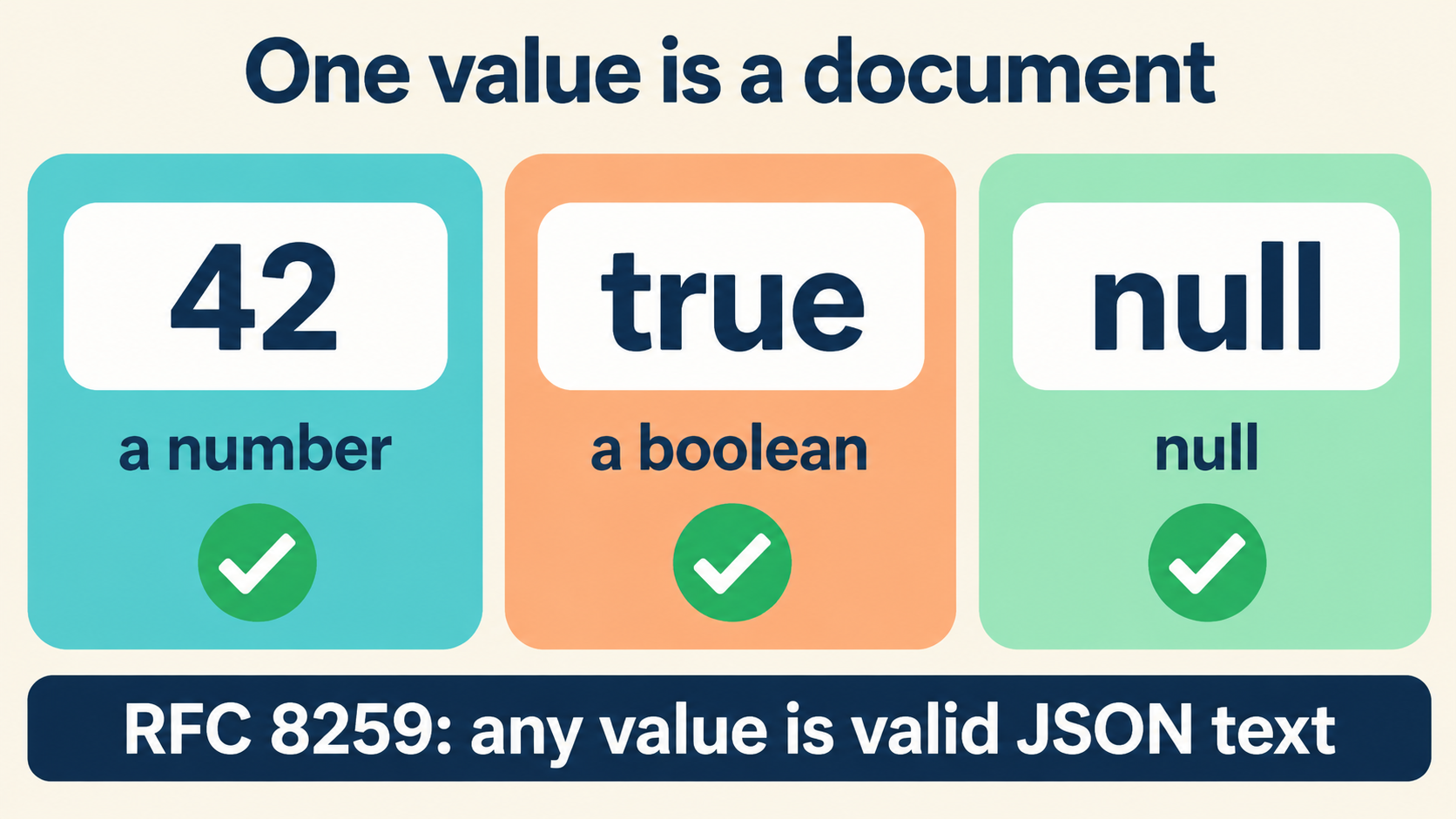
One Value Can Be a Complete JSON Document
Yes. A complete JSON document can be just 29, true, false, null, or a double-quoted string such as "hello". Objects and arrays are also valid root values, but neither kind of wrapper is necessary for a document to qualify as JSON.
Three separate checks matter when you work with these inputs: whether the text is valid JSON, whether a particular parser accepts its root value, and whether the receiving application permits that value. Keeping those checks separate helps you correct the actual mismatch instead of “fixing” a document that was never broken.
The value-based JSON grammar allows one JSON value to form a complete document, with permitted whitespace around it. That value can be an object, array, string, number, boolean, or null — the last four being the primitive types discussed here. For example, the entire contents of a document can be:
29
There is no missing object around this number. Likewise, a document containing only null contains a value; it is different from empty input. A standalone string is complete when its required double quotation marks are present.
Think of the root as the value submitted for parsing. An application might require an object at that position, but first consider the syntax question: does the input contain one permitted JSON value? Surrounding whitespace does not add another value — JSON permits spaces, horizontal tabs, line feeds, and carriage returns as whitespace, so true still contains one boolean value. An input containing only whitespace has no value, while true false contains two consecutive values; neither satisfies the requirement for one complete JSON document.
JSON.parse(' true ');   // boolean: true — whitespace is permitted
JSON.parse('true false'); // SyntaxError — two values, not one document
This distinction gives a useful first inspection: look for the value itself before deciding whether braces or brackets are needed. Add structure when the payload requires it, rather than assuming every JSON root must be a container.
Standalone Primitives: Examples and Expected Results
Each call below supplies a separate, complete JSON text to JavaScript’s JSON.parse; the comments show the expected result and identify its type where helpful:
JSON.parse('29');       // number: 29
JSON.parse('true');     // boolean: true
JSON.parse('false');    // boolean: false
JSON.parse('null');     // null
JSON.parse('"hello"');  // string: "hello"
The number needs no brackets or braces; the boolean literals and null use lowercase spelling; the string example includes double quotation marks within the text being parsed.
When pasting into a formatter, enter the JSON text itself: 29 for the first example, "hello" including its double quotes for the last. The surrounding JSON.parse(...) expression belongs to the JavaScript example and is not part of the JSON document. Inspect one example at a time — placing all five sample values together in the input would create a sequence of values, which is a different input from any individual example.
These examples also distinguish a present value from missing input. Both false and null are complete JSON values; if a receiving form or application reports either as missing, inspect that application’s requirements and handling separately. Replacing the value or adding a wrapper before understanding the requirement could change a payload that was already valid JSON:
// both are present values — a form treating them as "missing"
// has a falsiness bug, not a JSON problem:
const v = JSON.parse('false');
v === false;         // true — it is there
Boolean(v);          // false — but falsy! use v === undefined for absence
Quoted Text Changes the Resulting Type
Quotation marks affect the value produced by parsing: a number and a string containing the same digits are different results, and the same distinction applies to null and a string containing the letters null:
| JavaScript expression | Expected result | Resulting type |
|---|---|---|
JSON.parse('29') |
29 | Number |
JSON.parse('"29"') |
“29” | String |
JSON.parse('null') |
null | Null |
JSON.parse('"null"') |
“null” | String |
Two quotation layers appear in these JavaScript examples. In JSON.parse('"29"'), the outer single quotes delimit the JavaScript string passed to the parser; the inner double quotes belong to the JSON text, so the parser receives "29", a JSON string. In JSON.parse('29'), the outer quotes still delimit the argument, but the JSON text contains only the digits — that input produces a number. Quotation marks in the result column make the string’s type visible, distinguishing text from the unquoted value.
typeof JSON.parse('29');    // 'number'
typeof JSON.parse('"29"');  // 'string' — one character in source changed the type
When moving an example from JavaScript source into a formatter, identify the JSON text before copying. Removing the JSON double quotes from "29" changes its type; adding them to 29 also changes its type. Choose the representation required by the receiving application, and preserve that choice when editing or formatting.
Invalid Literals, Empty Input and Extra Values
Accepting standalone primitives does not mean accepting arbitrary unquoted text. The literal names true, false, and null must be lowercase; the unquoted tokens undefined, NaN, and Infinity are not valid JSON values:
| JSON input | Why it is invalid |
|---|---|
True |
It does not use the required lowercase boolean spelling |
undefined |
This unquoted token is not a JSON value |
NaN |
This unquoted token is not a JSON value |
Infinity |
This unquoted token is not a JSON value |
| Empty input | No JSON value is present |
true false |
Two consecutive values are present |
hello |
The unquoted word is not a JSON value |
'hello' |
JSON strings require double quotes |
Permitted whitespace around a value is different from additional content — surrounding spaces leave one value to parse, while in true false whitespace separates two values and does not turn them into one document.
The single quotes in JSON.parse('"hello"') delimit the JavaScript argument, not the JSON string inside it. If you enter 'hello' directly into a JSON formatter, those single quotes are part of the submitted text and the input does not satisfy JSON’s string quotation rule. When diagnosing a rejection, compare the exact input with the patterns above — check capitalization, quotation marks, absent values, and extra values before investigating restrictions on otherwise valid roots:
// each rejection, confirmed by the grammar itself:
['True','undefined','NaN','Infinity','','true false',"hello","'hello'"]
  .every(s => { try { JSON.parse(s); return false; } catch { return true; } });
// true — the table and the parser agree, case by case
Where the Object-or-Array Expectation Came From
The expectation that every JSON document must begin with an object or array has a historical basis: earlier JSON grammar required an object or array at the root, while the later value-based grammar permits a single value, including a primitive. That earlier requirement explains why an object-or-array rule may appear in documentation or tooling — it should not be presented as the rule for all JSON documents.
When a primitive is rejected, read the tool’s documented JSON standard and parsing mode. Look for an explicit root restriction, and determine whether rejection happens while reading the JSON or during a separate application check. Rejection of 29 alone does not establish that the number is malformed JSON — investigate whether the tool requires an object or array. By comparison, True has a syntax problem regardless of any root restriction: its spelling does not match the lowercase JSON boolean literal.
// two rejections, two different causes:
// 'True'   → syntax: capital letter, wrong on every parser
// '29'     → possibly a tool's root restriction, not JSON's
// the fix differs: respell vs. change mode or restructure
A useful diagnostic report includes the exact input, the documented mode, and the stage that rejected it. That makes a report such as this tool rejects a standalone number more actionable than numbers are invalid JSON — the second is simply false. If the documentation does not explain primitive roots, ask whether the restriction belongs to the parser or to the application using it.
Valid JSON Can Still Fail an Application’s Contract
Parsing and application validation answer different questions. Parsing concerns whether text can be read as JSON under the parser’s rules; an application’s contract concerns whether the resulting value has the required structure and content. A successful parse does not settle the second question.
Consider an explicitly hypothetical endpoint whose complete requirement is an object containing a numeric field named value. The standalone input 29 parses successfully, but its root is a number — it fails this hypothetical object requirement. Under that stated contract, the corresponding object would be:
{"value":29}
Wrapping changes the payload structure: the root becomes an object, and the number appears in its value field — a structure matching the requirement because the requirement explicitly calls for it. The field’s type still matters:
{"value":"29"}
typeof JSON.parse('{"value":"29"}').value; // 'string' — fails the numeric field
typeof JSON.parse('{"value":29}').value;   // 'number' — matches
Both examples are JSON, but only the first matches the numeric-field requirement described above.
Verify the required root shape, field name, and field value type before wrapping a primitive. If the receiving application expects a standalone number, introducing an object changes what you send; if it expects an object with different fields, an arbitrary value wrapper does not establish compliance. Keep three possible problems visible while troubleshooting: invalid JSON syntax, a parser restriction on the root, and application rejection of a parsed value. Correcting spelling addresses a syntax problem; selecting a documented parsing mode may address a parser restriction; changing payload structure requires checking the receiving contract.
Inspect a Primitive and Preserve Its Meaning
Use a JSON formatter to compare the submitted text with the displayed root value, the output, and any reported error. The workflow, in five steps:
- Enter the JSON text directly:
29,true,null, or"hello", without a surroundingJSON.parse(...)call. - Inspect the root value. Compare pairs such as
29and"29"; confirm the representation distinguishes a number from a string. - Compare input and output. Look for changes to quotation marks, root structure, and numeric text; preserve the original input so you can inspect any differences.
- Locate the reason for rejection. Check invalid literals, empty input, and extra values first; then investigate documented parser restrictions or application validation.
- Check the receiving contract. Successful formatting does not establish that another application accepts the payload’s root or field types.
Does successful formatting guarantee numeric precision? No. Valid numeric syntax and preservation of the original numeric token are separate checks, and successful parsing or formatting alone does not establish that precision is preserved throughout the workflow:
// precision is independent of validity:
JSON.parse('9007199254740993'); // parses fine — value rounds to ...992
// valid in, changed value out: compare the token text, not just the parse
If numeric fidelity matters, retain the original input and compare its numeric text with the output; check what the formatter documents about number handling, and ask what representation the receiving application requires. A textual comparison can reveal a rewritten token, but it cannot establish how every later stage handles the value. Avoid adding quotation marks merely to get a number through a tool — changing 29 to "29" produces a string and changes the payload’s type. Agree on the required representation, then inspect whether the workflow preserves it.
A useful inspection result answers several concrete questions: what text entered the formatter, what root value did it display, what text came out, and which requirement if any rejected it. Those observations connect a formatting result to the mismatch you need to resolve. The inspector on this site accepts all five standalone primitives directly — paste 29 or "hello" alone and the tree shows the root value with its type, the raw pane preserves the exact submitted text, and the whole exercise runs locally in one paste.